
Flutter-防京东商城项目-商品详情属性选择-22
一直觉得自己写的不是技术,而是情怀,一个个的教程是自己这一路走来的痕迹。靠专业技能的成功是最具可复制性的,希望我的这条路能让你们少走弯路,希望我能帮你们抹去知识的蒙尘,希望我能帮你们理清知识的脉络,希望未来技术之巅上有你们也有我。1.安装第三方flutter_inappbrowser: ^1.2.12.引入import 'package:flutter_inappbrowser/flutter_i
·
一直觉得自己写的不是技术,而是情怀,一个个的教程是自己这一路走来的痕迹。靠专业技能的成功是最具可复制性的,希望我的这条路能让你们少走弯路,希望我能帮你们抹去知识的蒙尘,希望我能帮你们理清知识的脉络,希望未来技术之巅上有你们也有我。
效果: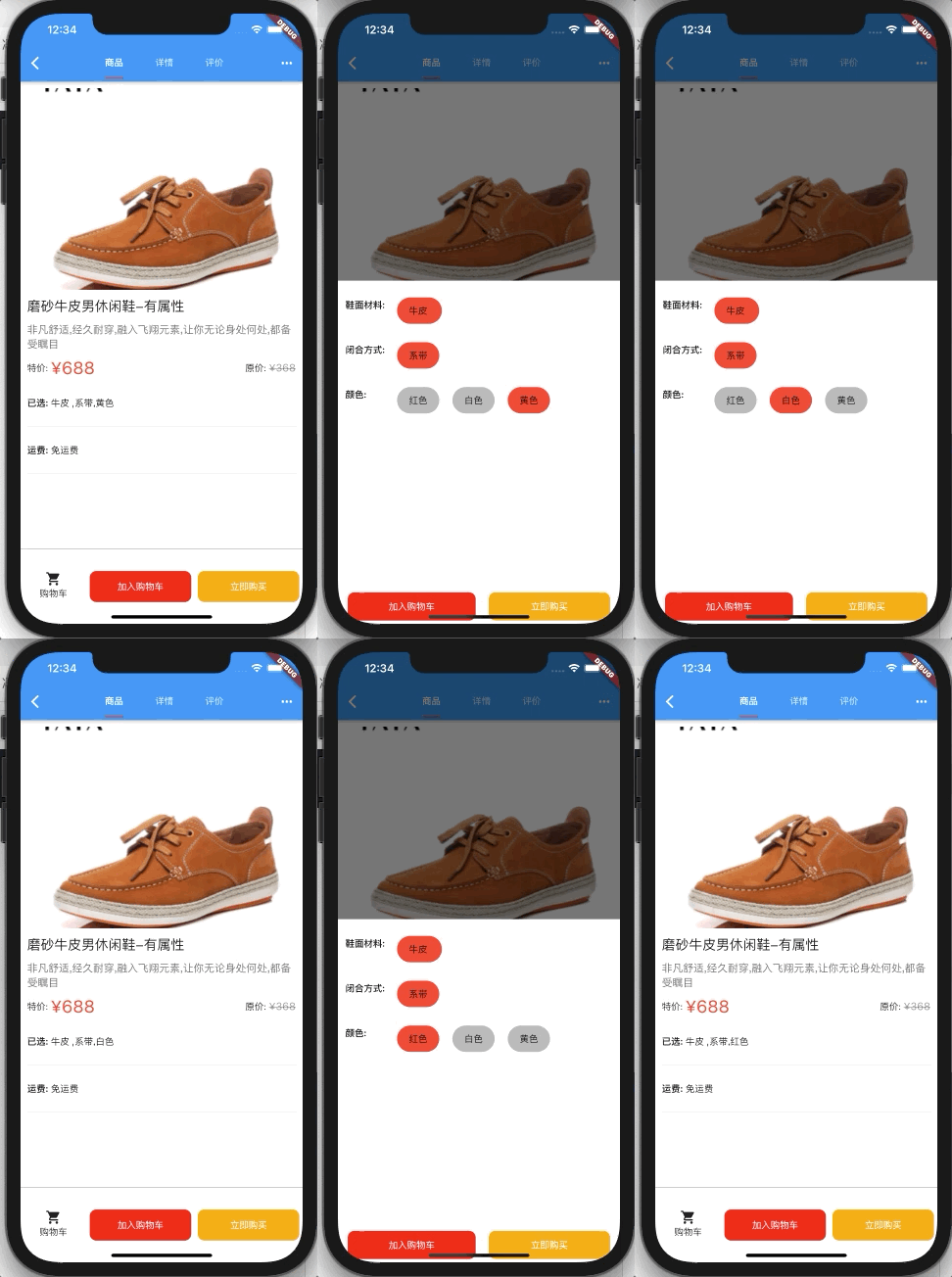
本章学习目标:
1.编写商品详情图片,使用第三方完成
2.点击弹出选择属性框 选择属性 然后回显到商品详情。
1.安装第三方
# webView 用于加载商品详情
flutter_inappbrowser: ^1.2.1
2.引入
import 'package:flutter_inappbrowser/flutter_inappbrowser.dart';
3.接收参数

class ProductContentSecond extends StatefulWidget {
  final List _productContentList;
  ProductContentSecond(this._productContentList,{Key key}) : super(key: key);
  _ProductContentSecondState createState() => _ProductContentSecondState();
}
4.编写内容
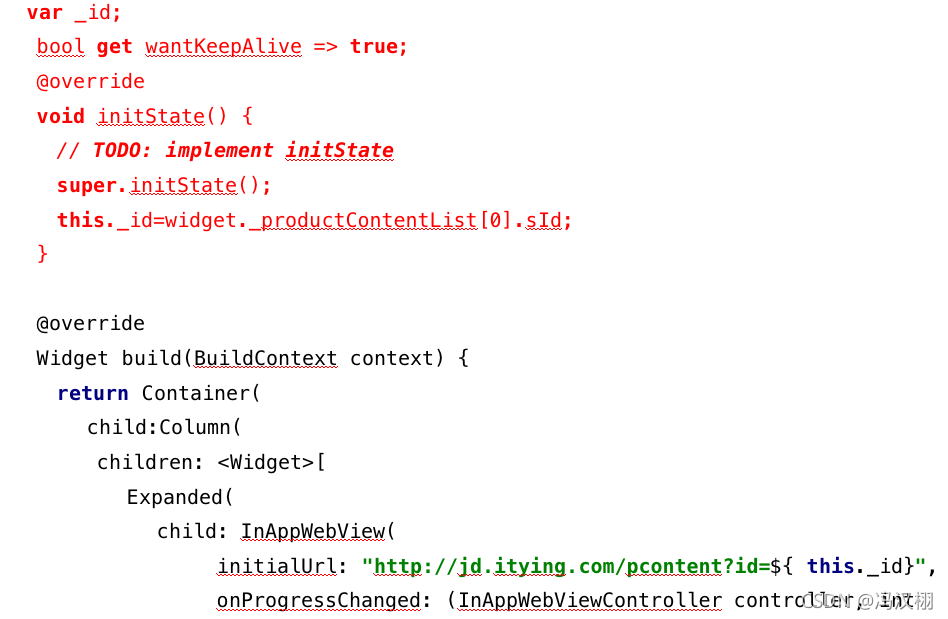
 var _id;
  bool get wantKeepAlive => true;
  @override
  void initState() {
    // TODO: implement initState
    super.initState();
    this._id=widget._productContentList[0].sId;
  }
上面的所有步骤。由于第三方库不支持现在的flutter最新框架,运行会出问题的,所以就不写了。
5.接下来的代码是写选择属性框选择属性。
把这个页面的内容
换掉就可以了,设计的逻辑比较复杂。
6.然后在模型里面添加两个新的数组
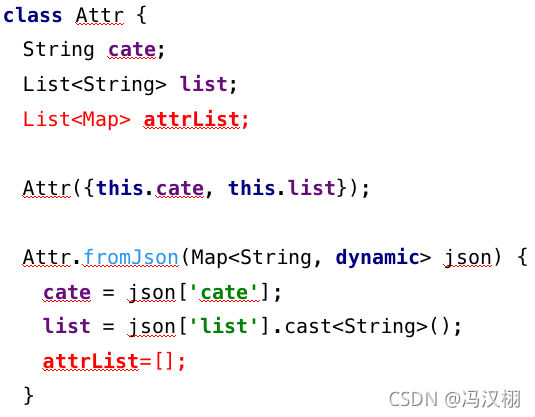
class Attr {
  String cate;
  List<String> list;
  List<Map> attrList;

  Attr({this.cate, this.list});

  Attr.fromJson(Map<String, dynamic> json) {
    cate = json['cate'];
    list = json['list'].cast<String>();
    attrList=[];
  }

电商企业物流数字化转型必备!快递鸟 API 接口,72 小时快速完成物流系统集成。全流程实战1V1指导,营造开放的API技术生态圈。
更多推荐
 0
0 0
0- 0


 已为社区贡献3条内容

所有评论(0)